
Setting Versions and Individual Settings
Chris McKeown / November 12, 2026
Overview
Every licence key has one set of Bonus Tools settings — the licence default — that every Revit user gets. Setting versions let you go further, one setting at a time:
- Versions — named alternatives of a setting, e.g. a "BIM Team" ribbon or a "Strict" Health Check. Switch any users to a version.
- Individual — a user's own copy of a setting. It follows them to any PC they sign in to Revit on.
There are five settings, and each is switched separately, so a user can have the BIM Team ribbon, their own Individual Element Tracking and the licence default for everything else:
| Setting | What it holds |
|---|---|
| General | Feature toggles, journal files, help file, images |
| Ribbon | Which tools appear on which ribbon, panel, button |
| Element Tracking | Which parameters are stamped on which days |
| Health Check | Health Check list and the automatic report (Revit: Model Health) |
| Window Watcher | Which Revit dialogs are blocked or logged |
Setting versions are an enterprise feature, off by default. Contact KiwiCodes with your licence key to enable it. Users without a switch keep the licence default, so nothing changes until you switch someone.
Who can do what
| Who | Can |
|---|---|
| Company owner | Edit the licence default, add versions, switch users, and edit every user's Individual copy |
| Company member | Edit their own Individual copies under My Revit Settings |
| Revit user (no login) | Edit their own Individual copies in the Bonus Tools Settings window in Revit |
Open your licence key's Revit Settings
- Sign in to the Bonus Tools website and open Revit Settings from the company menu.
- Select the licence key you wish to configure.
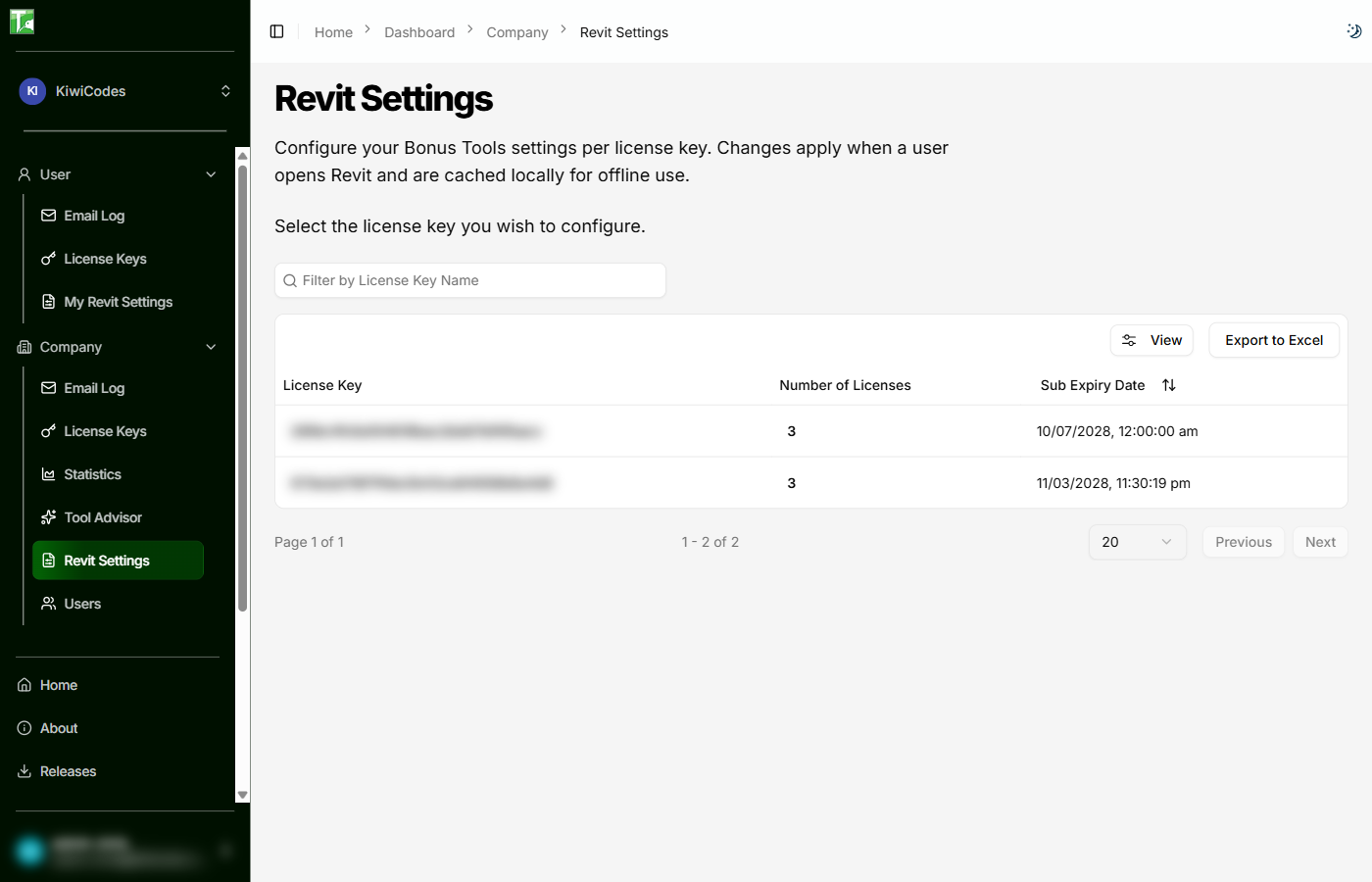
The page has a tab for each setting, plus User Mapping (shown once setting versions are enabled for the key).
Edit a setting or a version
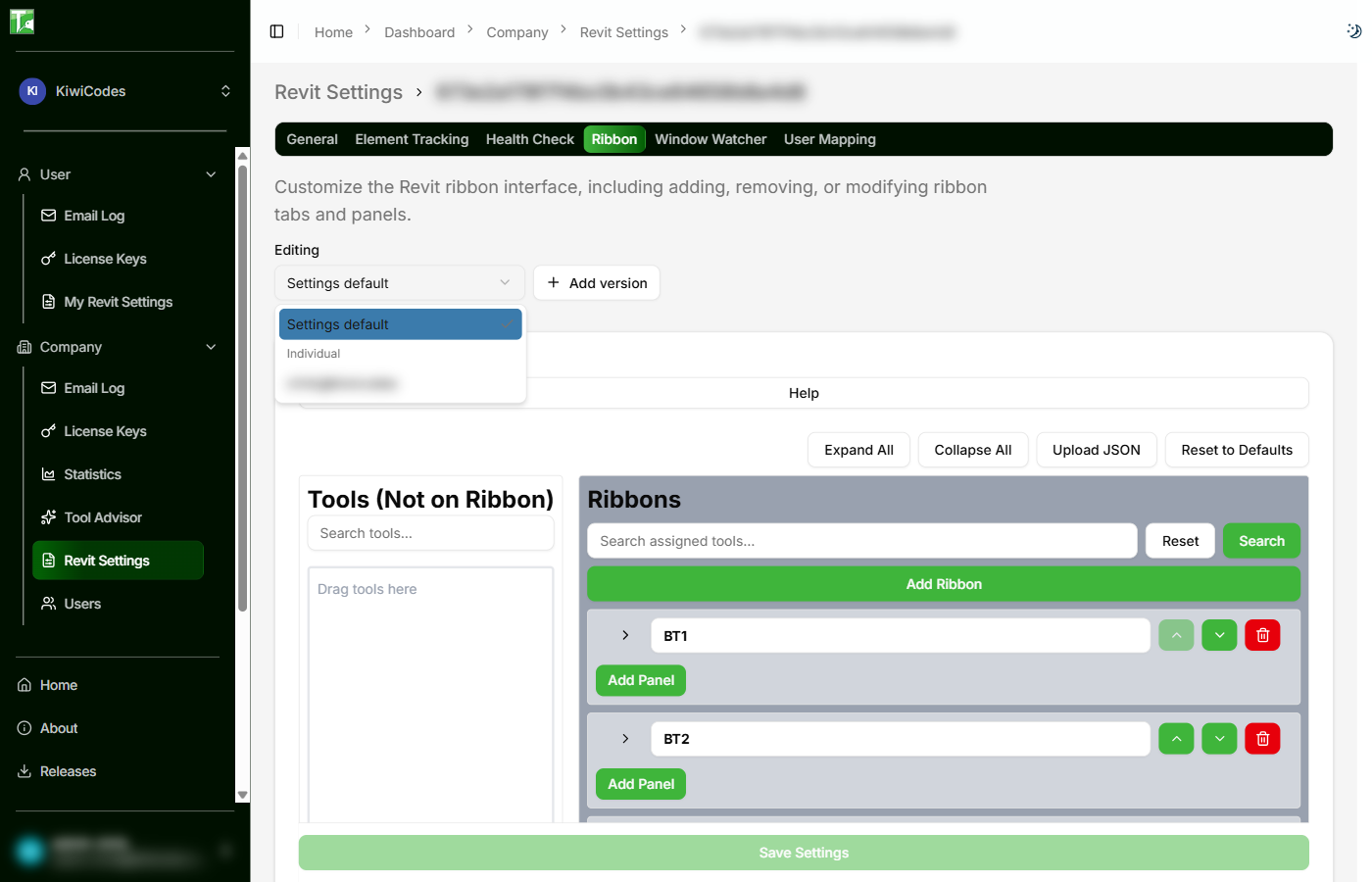
Each setting tab has a version picker above the editor:
- Settings default — the licence default: what every user gets unless they're switched to something else.
- Each version you've added.
- Each user's Individual copy (shown by their Autodesk ID).
Pick one, change the fields, and click Save Settings. Changes reach Revit the next time the user starts Revit.
A licence key that has never saved a setting shows the add-in's own defaults — exactly what Revit uses. Reset to Defaults returns to them.
Add, rename or delete a version
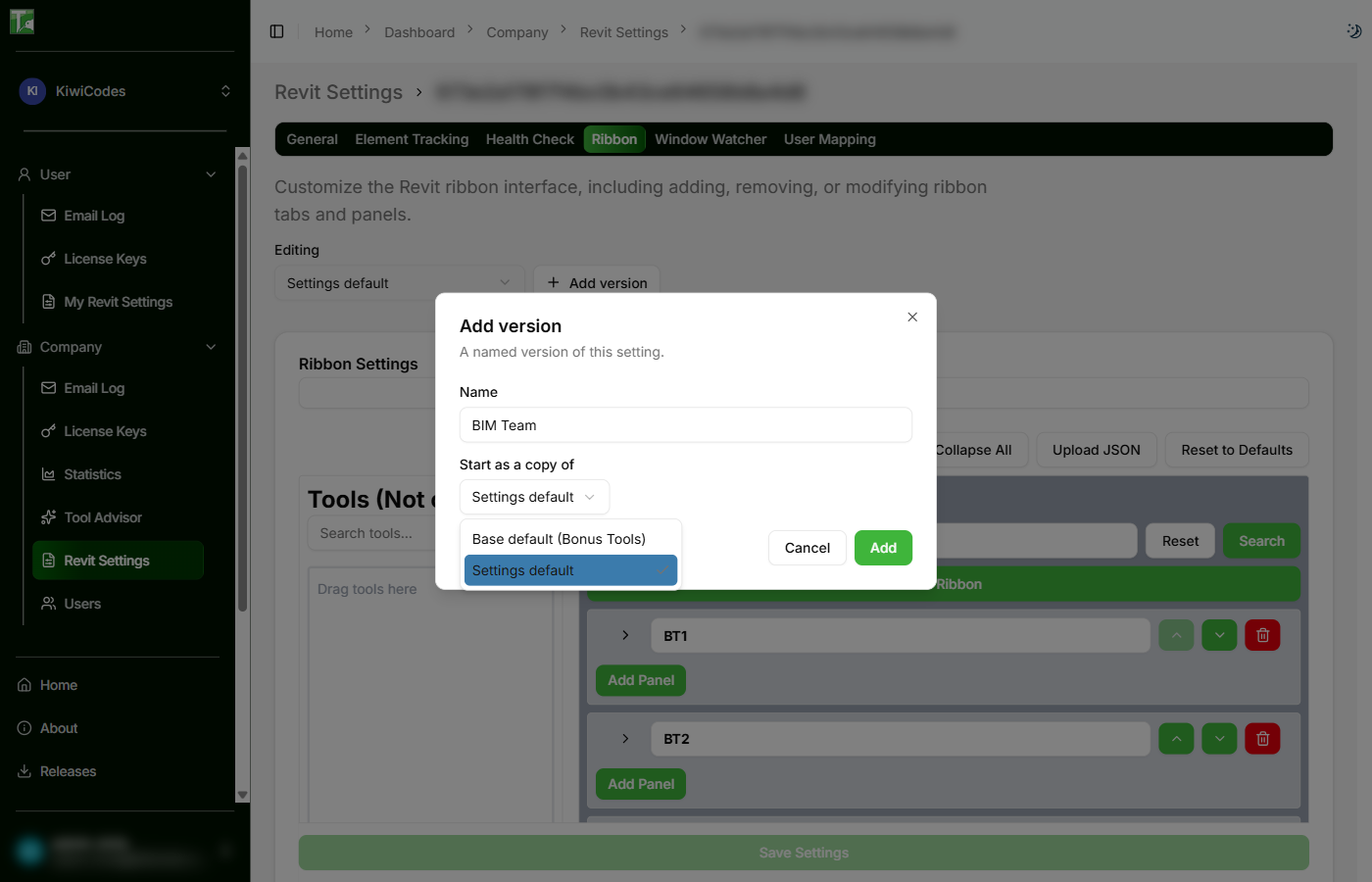
Click Add version, give it a name, and choose what it starts as a copy of:
- Settings default — the licence default,
- Base default (Bonus Tools) — the add-in's built-in setting, or
- another version of the same setting.
Use Rename and Delete next to the picker for the selected version. Deleting a version moves its users back to the licence default.
Choose who gets which version — User Mapping
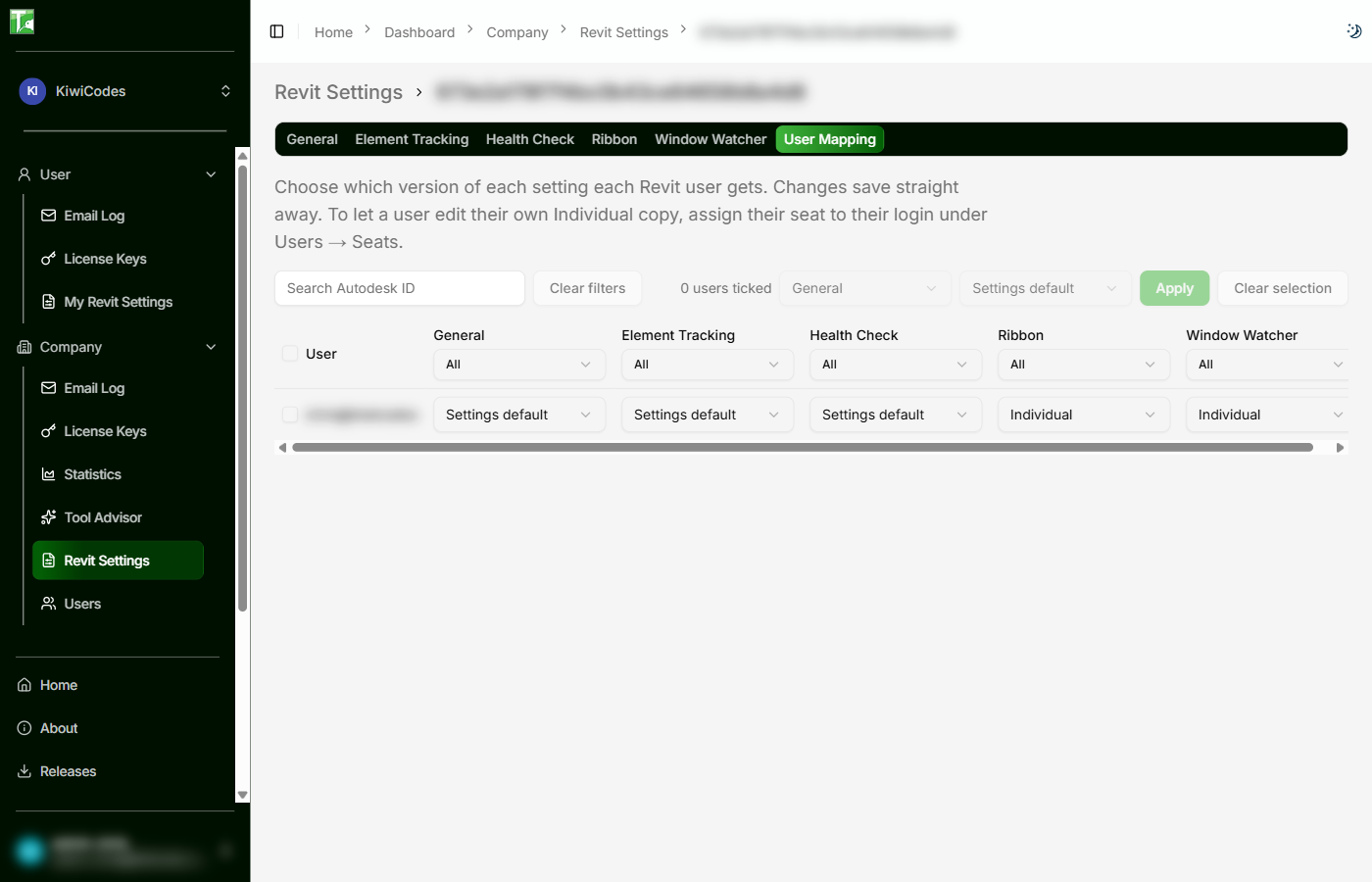
The User Mapping tab lists every Revit user (by Autodesk ID) who has used Bonus Tools with this licence key, with one column per setting. Choose Settings default, a version, or Individual in any cell — changes save straight away.
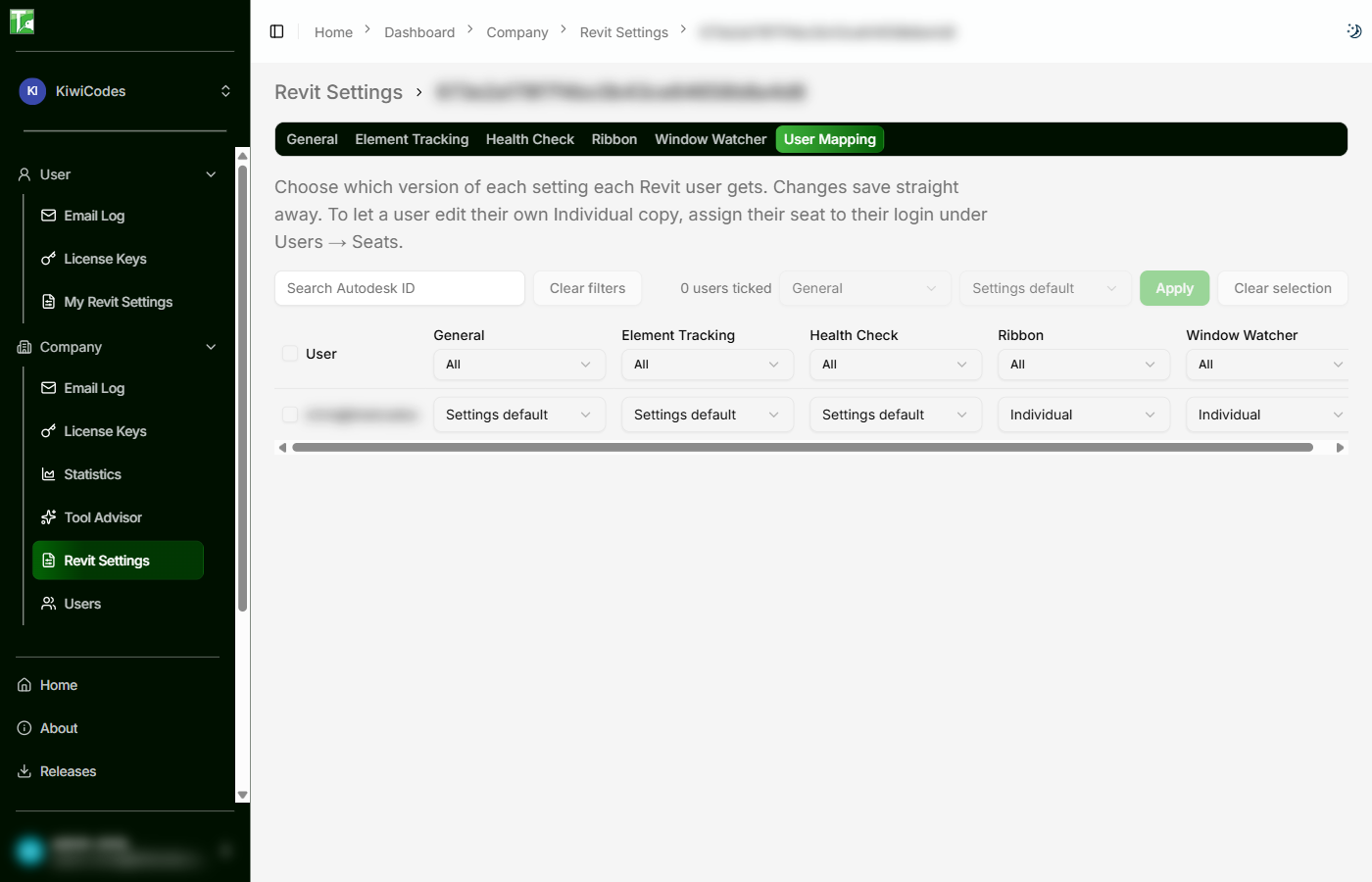
To switch many users at once, tick them, choose the setting and the version in the bar above the grid, and click Apply. Search Autodesk ID and the filter under each column heading narrow the list.
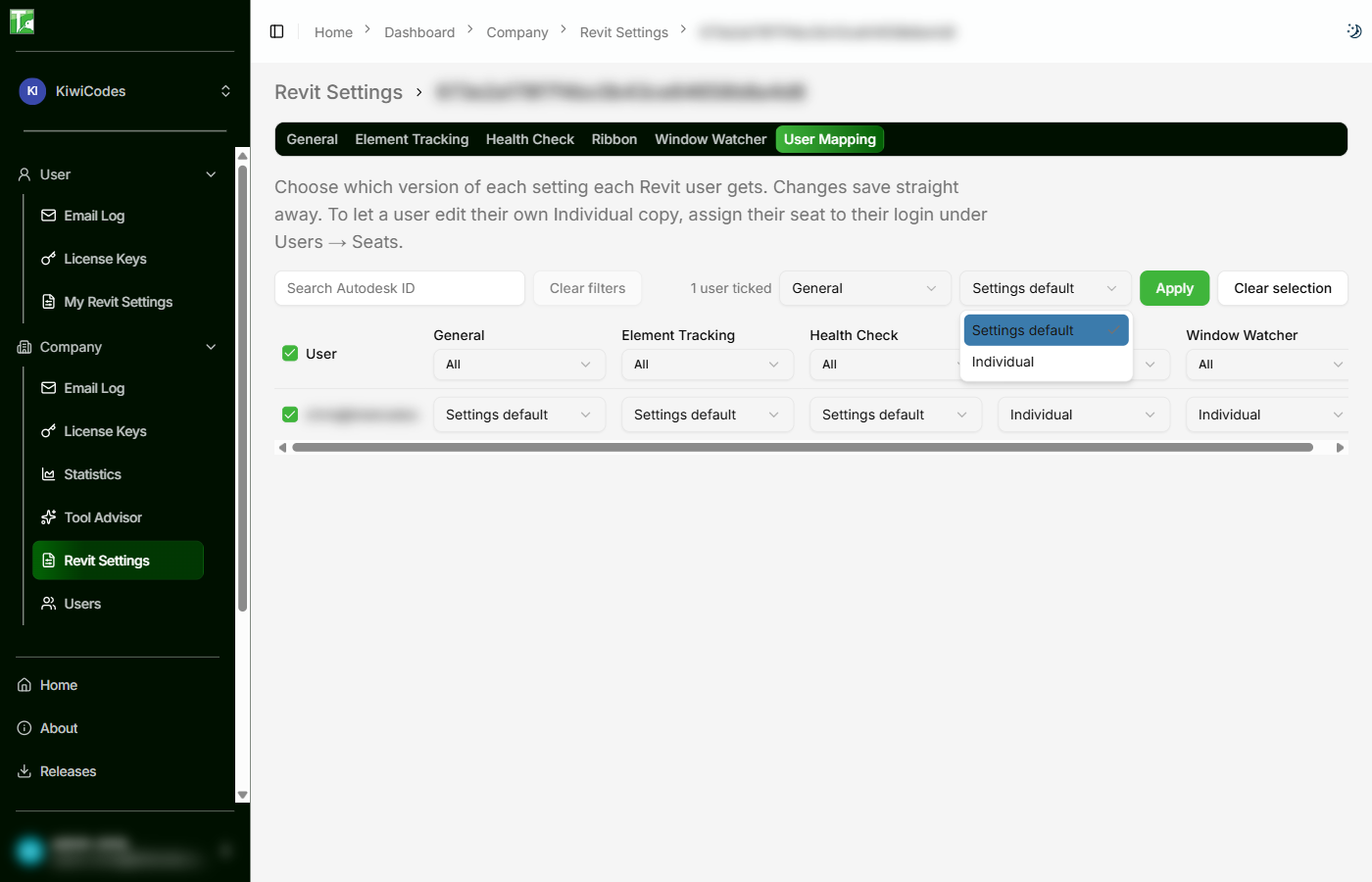
Users appear here once they have used Bonus Tools with this licence key.
Individual settings
Switching a user's setting to Individual creates their own copy. It starts as whatever they had in Revit:
- Until then, selecting the copy in the picker shows "Waiting for the first save from Revit".
- The next time that user opens Revit, Bonus Tools uploads their current setting into the copy, once.
- From then on, the copy is theirs: edit it on the website (owner or the user), or in Revit's Settings window.
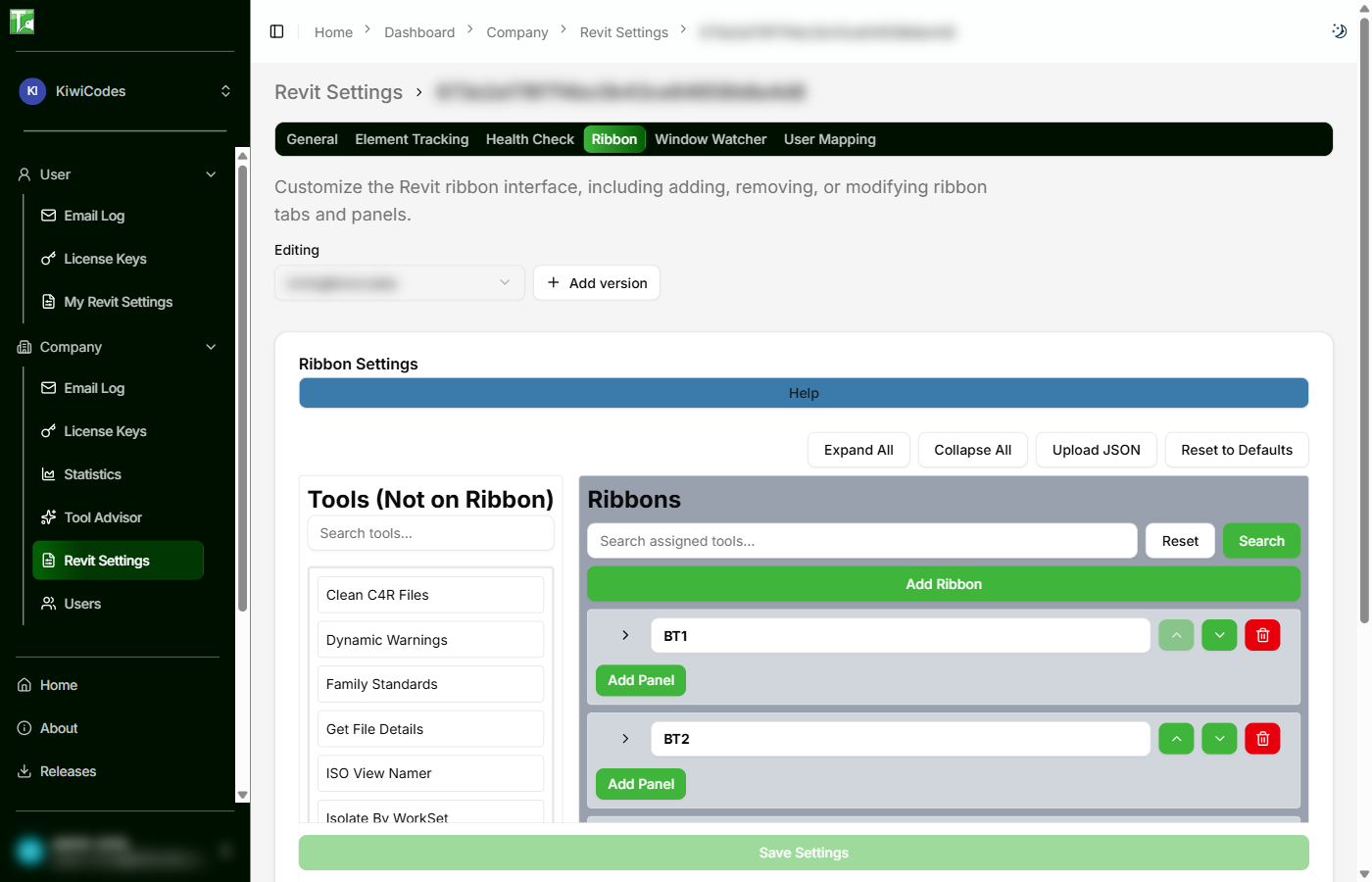
Because the copy is stored on the website, it follows the user to any PC they sign in to Revit on.
Let a user edit their own copy on the website
A Revit user is identified by their Autodesk ID. To let them edit their Individual copies on the website, link that Revit user to their website login:
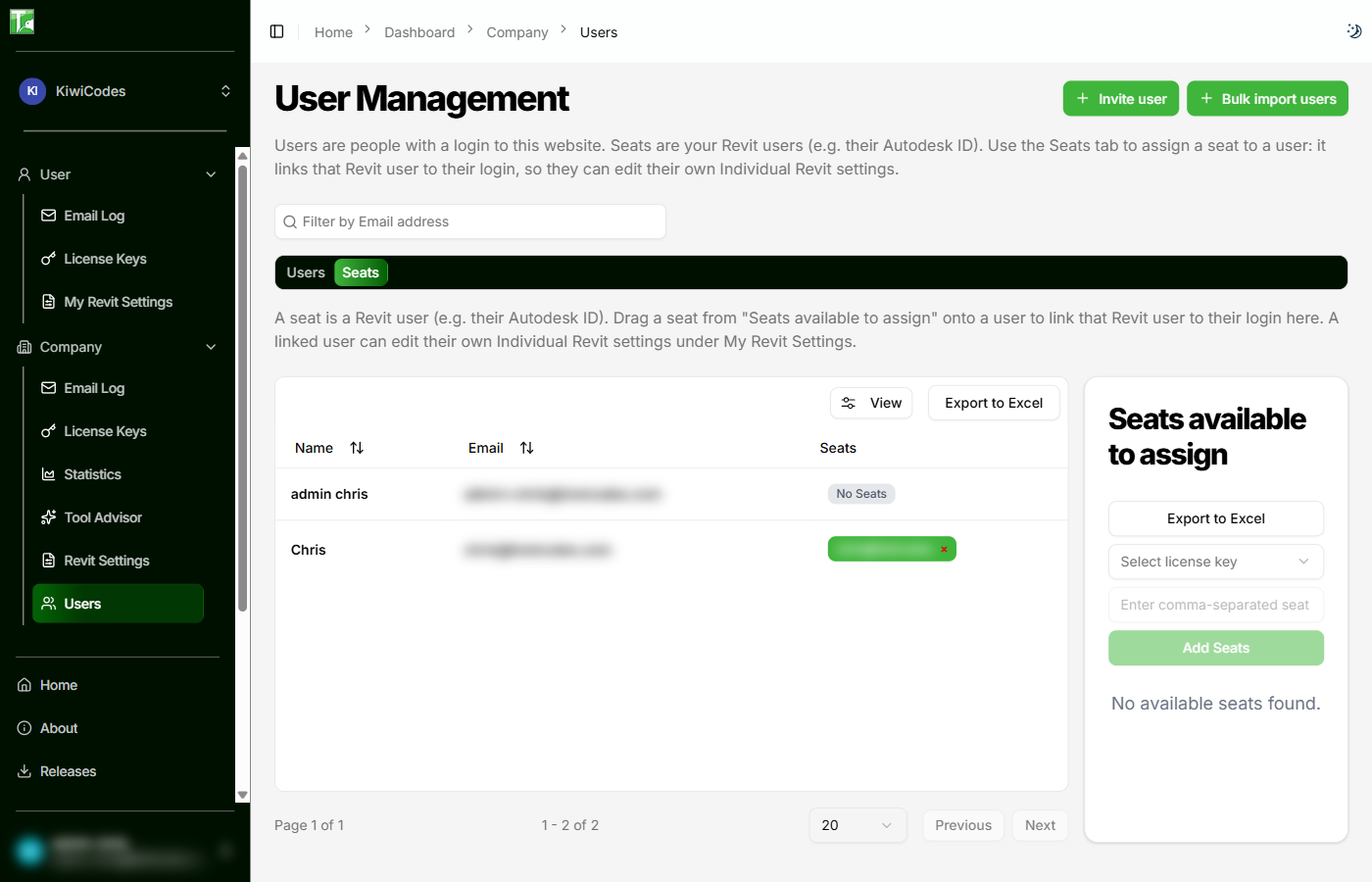
- Open Users from the company menu, then the Seats tab.
- Drag the Revit user's seat from Seats available to assign onto their login. (A seat already assigned shows next to the user; click its × to remove it.)
They can then open My Revit Settings from their menu and edit each of their Individual copies:
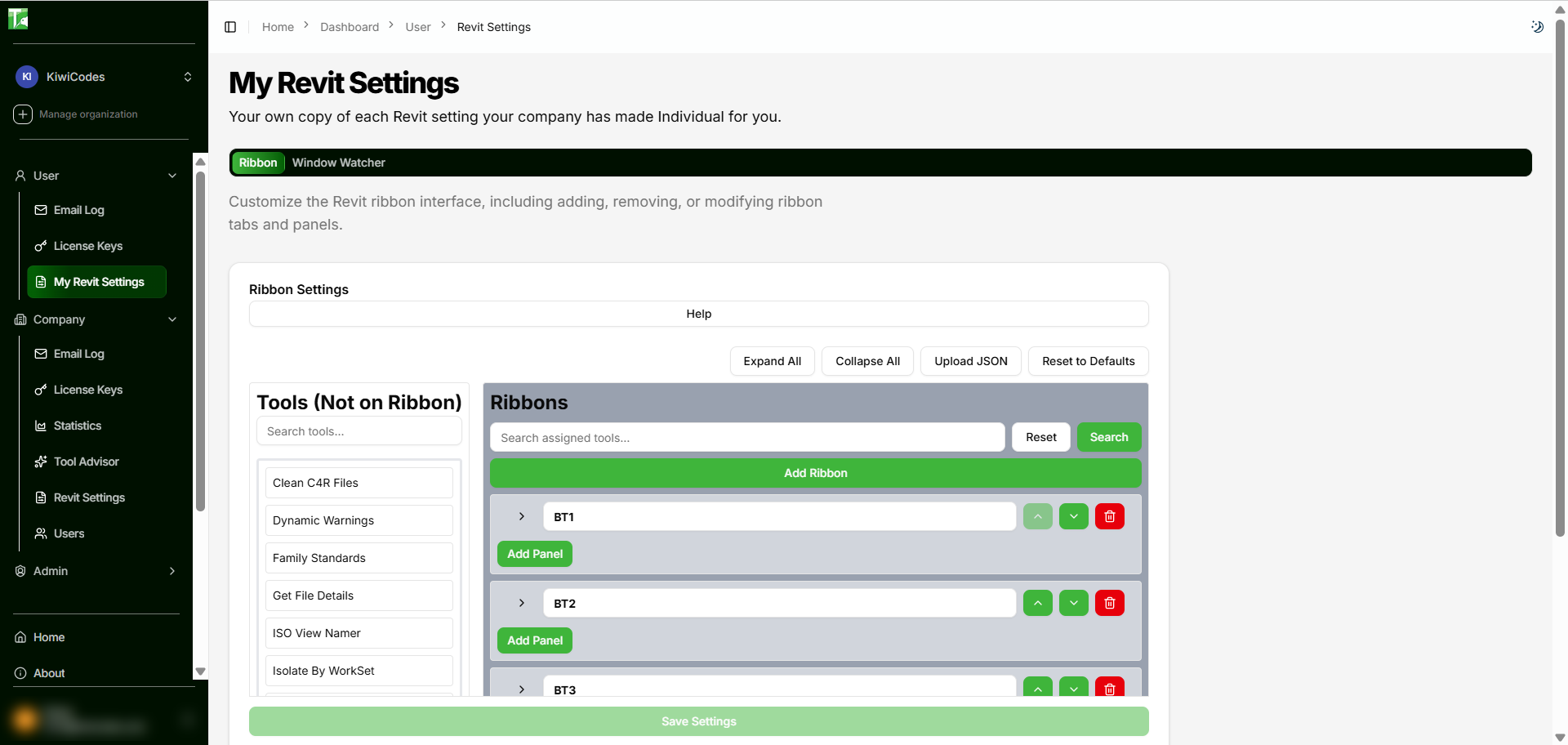
Not every Revit user needs a website login — users without one can edit their Individual copies in Revit's Settings window (see 007 Settings).
What users see in Revit
- Same PC: a user's versions load when Revit starts.
- New PC (or a new user on this PC): Revit only knows the Autodesk ID once it has started, so Bonus Tools applies the user's settings straight after start-up. A changed ribbon shows the message "Your Bonus Tools ribbon has changed. Please restart Revit for the changes to take effect." — their ribbon appears after the restart.
- After a change on the website: the user gets it the next time Revit starts.
- Settings window: shows a link to the website. Saving there updates the licence default, or the user's Individual copy; a setting that comes from a version isn't saved from Revit (edit the version on the website).
Tips
- Start small: add one version (e.g. a BIM Team ribbon), switch a couple of users, and check it in Revit before rolling out.
- Use Individual for power users who maintain their own ribbon — their layout then follows them between PCs.
- Users never switched keep the licence default, so you can turn the feature on with no effect on anyone.