
126 Family Info
Chris McKeown / January 22, 2026
Power
Overview
Family Info scans a folder of Revit family (.rfa) and family template (.rft) files without requiring you to open each one manually. It extracts file metadata, Revit build information, and worksharing status, and can simultaneously reorganise families by category, extract nested families, save thumbnail icons as JPGs, generate XML part-atom files, and export all data to a multi-worksheet Excel file for auditing or standardisation work.
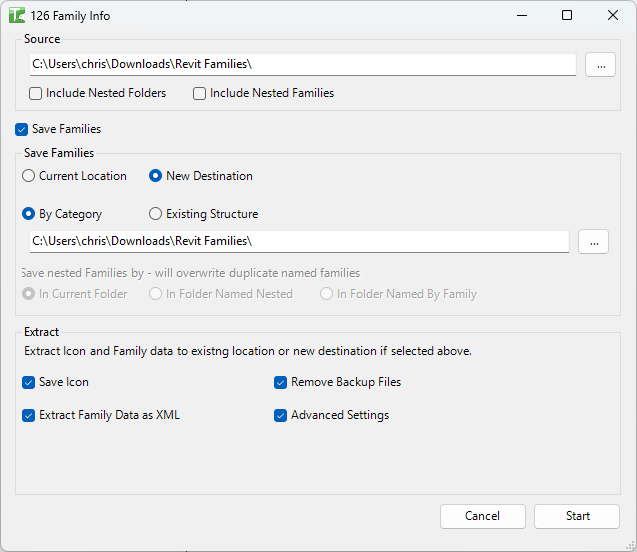
Table of Contents
Key Features
- Batch-process entire folder trees of .rfa and .rft files
- Extract file-level metadata: name, path, size, extension, created/modified dates
- Read Revit build info without opening files in Revit: product, platform, build timestamp, last-saved path
- Read worksharing status, central file path, and workset default setting
- Copy and reorganise families by Revit category or preserve existing folder structure
- Extract nested families and save to subfolders (current folder, Shared/Nested split, or parent-named subfolder)
- Save family thumbnail previews as 2× JPG images
- Extract part-atom XML data from each family
- Remove Revit backup files (
.0001.rfathrough.9999.rfa) automatically - Export detailed data to a single
Export.xlsxwith up to 10 worksheets covering subcategories, parameters, materials, line/fill patterns, dimensions, text, labels, and unit settings - Settings are remembered between sessions
Requirements
- Must be run from a project document — the tool is not available inside the Family Editor
- A valid, accessible source folder containing
.rfaor.rftfiles - If Save Families is enabled: a valid destination folder with write permission
- If Export settings to excel is enabled: write permission to the destination folder (the Excel file is saved there as
Export.xlsx) - No active view or selection is required — the dialog opens independently
Running the Tool
Launch
Find Family Info on the Bonus Tools Ribbon or use 115 Search Tools.
The dialog opens with all options at their default state. Settings from your last session are restored automatically.
Step 1 — Set the Source Folder
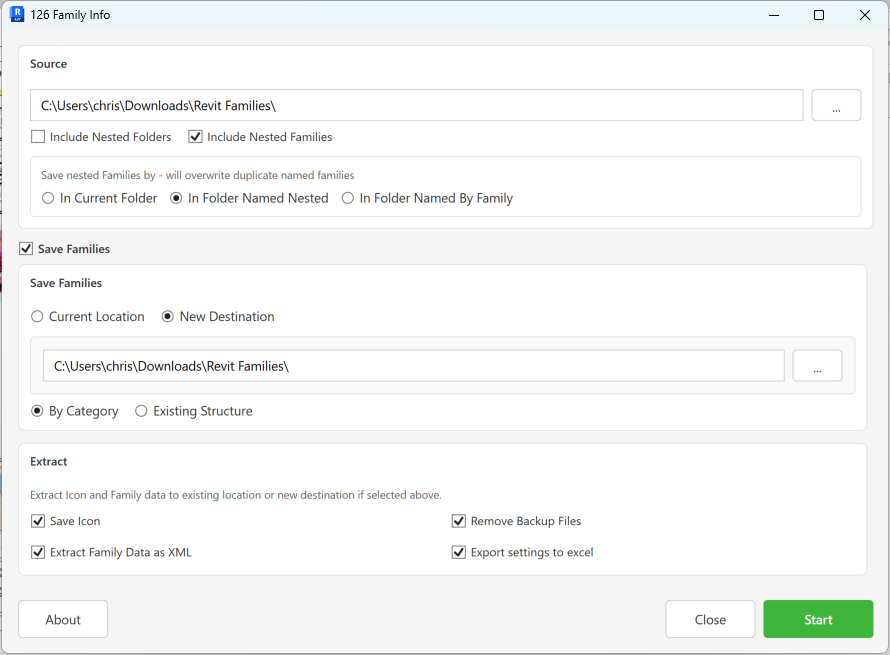
In the Source section, click ... to browse for the folder containing your family files. The path defaults to C:\ on first use.
- Check Include Nested Folders to search all subfolders recursively.
- Check Include Nested Families to also extract and save families that are nested inside parent families. When enabled, a set of radio buttons appears to control where nested families are saved:
| Option | Behaviour |
|---|---|
| In Current Folder | Nested families are saved alongside their parent family |
| In Folder Named Nested | Shared families go to a Shared subfolder; non-shared go to a Nested subfolder |
| In Folder Named By Family | Creates a subfolder named after the parent family; all its nested families go inside |
Duplicate-named nested families will overwrite each other. Use In Folder Named Nested or In Folder Named By Family to avoid collisions.
Step 2 — Configure Save Families (Optional)
Check Save Families to copy the processed families to a new location or re-save them in place.
Destination:
- Current Location — families are re-saved in their original folders (useful for stripping backup files or extracting data in-place)
- New Destination — families are copied to a separate folder. Click
...to browse for the destination
Organisation (New Destination only):
- By Category — creates subfolders named after each family's Revit category (e.g.
Doors,Furniture,Windows) - Existing Structure — mirrors the source folder hierarchy at the destination
Step 3 — Configure Extract Options
The Extract section controls what additional data is generated alongside each family:
| Option | What it does |
|---|---|
| Save Icon | Saves the family thumbnail as a JPG (2× scale) with the same name as the family file |
| Remove Backup Files | Deletes .0001.rfa through .9999.rfa backup files from the output folder tree |
| Extract Family Data as XML | Runs Revit's ExtractPartAtomFromFamilyFile to produce an XML file per family |
| Export settings to excel | Opens each family document and writes detailed data to Export.xlsx in the destination folder |
Export settings to excel is the most time-intensive option — it opens every family in Revit. Only enable it when you need the detailed worksheet data.
Step 4 — Start Processing
Click Start. A progress bar shows Status: X of Y files processed. Click Cancel in the progress bar to stop mid-run — already-processed files are kept.
When complete, a confirmation message appears. If Export settings to excel was enabled, open Export.xlsx in the destination folder.
Excel Export Worksheets
When Export settings to excel is enabled, Export.xlsx is created with worksheets populated only for tables that contain data:
| Worksheet | Contents |
|---|---|
| Families | Error, File_Name, File_Path, File_Size, File_Extension, File_Date_Created, File_Date_Modified, Doc_Type, WorkSharing, Is_Central_File, User_Name, Central_File_Path, Revit_Build, Product, Platform, Build_Time_Stamp, Last_Saved_path, Open_Workset_Default |
| Subcategories | Family, Parent, Name, LineWeightProjection, LineWeightCut, LineColourR/G/B, LinePattern, Material |
| Dimensions | Family, Id — one row per dimension type |
| Text | Family, Id — one row per text note type |
| Labels | Family, Id — one row per label style |
| LinePatterns | Family, Id, Name |
| FillPatterns | Family, Id, Name, Target, Host_Orientation |
| Parameters | Family, Id, Name, GUID, FamilyShared, ParameterGroup, ParameterType, IsInstance, Formula, IsReporting |
| Materials | Family, Id, Name |
| Other | Family, Length, Area, Volume, Angle, Slope, Currency — unit format settings |
Worksheets with no data are omitted from the file.
Tips and Best Practices
- Test on a small folder first. Run on a subfolder of 10–20 families before processing your entire library to verify the settings produce the output you expect.
- Back up before reorganising. When using Save Families → New Destination → By Category, the tool copies (not moves) files. Your originals remain untouched, but always confirm before cleaning up.
- Use Export settings to excel sparingly. This option opens every
.rfain Revit to extract advanced data — it is significantly slower than metadata-only runs. Use it for targeted audits rather than routine processing. - In Folder Named Nested is the safest nested family option. It separates shared families (placed in
Shared) from non-shared (Nested), making it easy to identify candidates for shared parameter alignment. - Remove Backup Files operates on the output folder, not the source. Use Current Location with this option enabled to clean up a family library in place.
- File size is human-readable. The Families worksheet shows sizes as B, KB, MB, or GB — useful for quickly identifying unexpectedly large families.
- Error column is your first diagnostic. Any file that fails to open, save, or process writes its error into the
Errorcolumn of the Families worksheet. Check this column first when results look incomplete. - Settings persist. Source folder, destination folder, and all checkbox/radio states are saved per project and restored on next open.
Common Use Cases
Family library audit — Point the tool at your firm's family library with Export settings to excel enabled. The resulting Excel file gives you a single-source inventory of every family: Revit version, worksharing status, parameter list, and subcategory configuration. Filter by Revit_Build to identify families that need upgrading before a version migration.
Reorganise a flat family folder by category — Check Save Families → New Destination → By Category. The tool reads each family's category directly from the Revit file and creates the correct subfolder automatically — no manual sorting required.
Extract nested families for standardisation — Enable Include Nested Families → In Folder Named Nested. All editable nested families are saved to Shared or Nested subfolders. Review these to identify duplicated or inconsistently named families that should be standardised or replaced with a shared version.
Create a visual family catalogue — Enable Save Icon on a folder of families. Each .rfa produces a same-named .jpg thumbnail at 2× resolution, ready to use in a catalogue spreadsheet or content management system.
Clean up a project family folder — Enable Save Families → Current Location and Remove Backup Files. The tool re-saves families (which can prompt Revit to update the last-saved path) and deletes all .0001.rfa–.9999.rfa backup files from the folder tree.
Troubleshooting
"is not a valid source directory" The path in the Source Folder field does not exist or is inaccessible. Verify the path and ensure the drive is mapped and accessible.
"is not a valid destination directory"
The Destination Folder path does not exist. Create the folder first, or browse to an existing one with the ... button.
"does not have write permission" The destination folder exists but the current Windows user does not have write access. Check folder permissions or choose a different destination.
Families listed in the Error column of Export.xlsx The family failed to open in Revit during processing. Common causes: the file is corrupt, it requires a newer version of Revit than is currently running, or it is locked by another process.
Nested families not appearing
Only families marked as editable (IsEditable = true) in Revit can be extracted. System annotation families (level heads, section markers, etc.) are excluded by design. Non-editable families cannot be saved.
Export.xlsx not created Export settings to excel must be checked. If it is checked and the file is still missing, verify write permission to the destination folder and check the Bonus Tools output log for errors.
XML file not created Extract Family Data as XML must be checked. If access is denied, the output log will show an "Access denied" message — check folder write permissions.
Progress bar stays at 0
The progress bar counts only .rfa files. If your source folder contains only .rft files, the bar may not advance visibly. Processing still occurs — wait for the completion message.
Processing appears to hang Families with many nested families or large geometry take significantly longer to open. Leave the tool running. If Revit becomes unresponsive, use the Cancel button in the progress bar.