Back to tutorials

157 ISO View Namer

Chris McKeown / July 1, 2025

Sheet & View Manipulation

~16 min read3,239 words
0 views

Overview

The ISO View Namer tool provides a structured approach to renaming Revit views according to ISO standards. It uses a six-field naming convention that creates consistent, organized view names across your project. The tool automatically extracts information from view parameters, suggests appropriate codes, and validates naming to prevent duplicates.

ISO View Namer

Table of Contents


Key Features

  • ISO-compliant view naming structure
  • Six-field naming convention: Phase_PlotSheet_Zone_ViewType_Level_Description
  • Automatic code suggestions based on view properties
  • Built-in validation to prevent duplicate names
  • Color-coded feedback (red for invalid, black for valid codes)
  • Dropdowns with predefined standard codes
  • Custom code entry support
  • View template assignment in same interface
  • View family type assignment
  • "Title on Sheet" parameter management
  • Uppercase/lowercase toggle
  • Auto-increment for duplicate names
  • Reads existing view names and attempts to parse components
  • Stores user preferences between sessions

Requirements

Pre-requisites

  1. Active View

    • Must have a view active (not a schedule or sheet)
    • Tool operates on the currently active view only
    • Cannot be used on view templates
  2. View Types Supported

    • Floor Plans
    • Area Plans
    • Ceiling Plans (RCPs)
    • Elevations
    • Sections
    • Detail Views
    • Drafting Views
    • 3D Views
    • Walkthrough Views
  3. Optional Custom Parameters

    • S-VW_Project Phase_T - Auto-populates Phase field
    • S-VW_Drawing Series_T - Auto-populates Plot Sheet field
    • MC_Zone_T - Auto-populates Zone field
    • These parameters enhance automation but are not required

Interface Guide

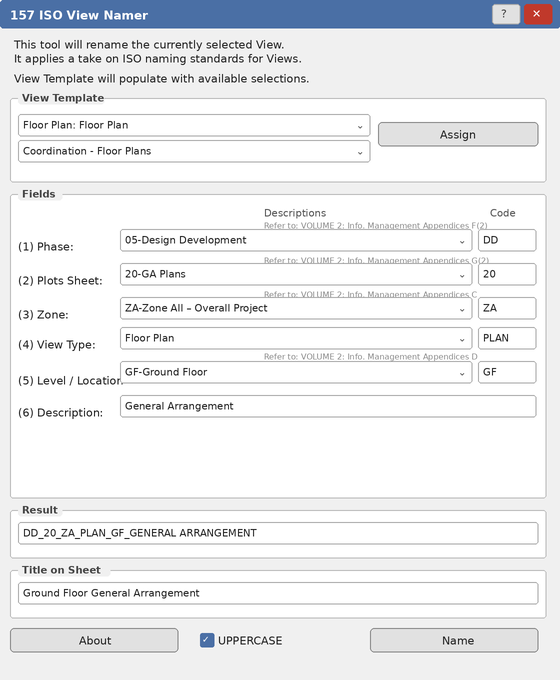
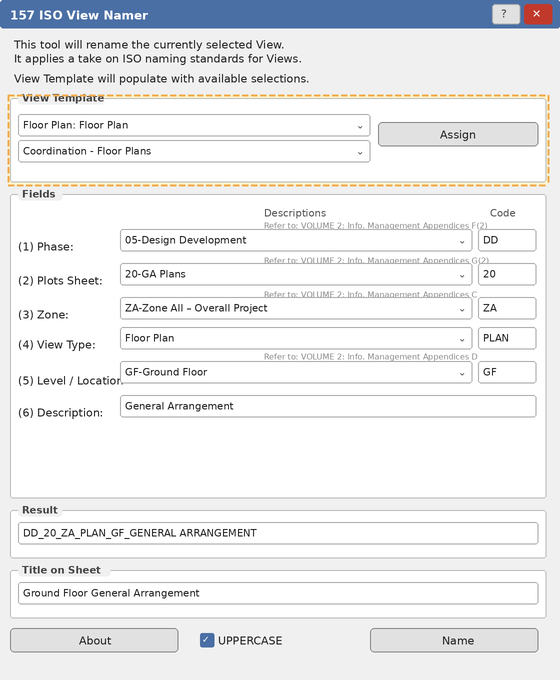
Top Section: View Template Assignment

View Template Dropdown

  • Lists all available view templates in project
  • Sorted alphabetically
  • Current template pre-selected (black text)
  • Red text indicates no template or unmatched template

View Family Type Dropdown

  • Shows compatible view family types
  • Example: "Floor Plan: Floor Plan" or "Section: Building Section"
  • Current type pre-selected

Assign Button

  • Applies selected template and family type to view
  • Updates both settings in single operation
  • Refreshes interface after assignment

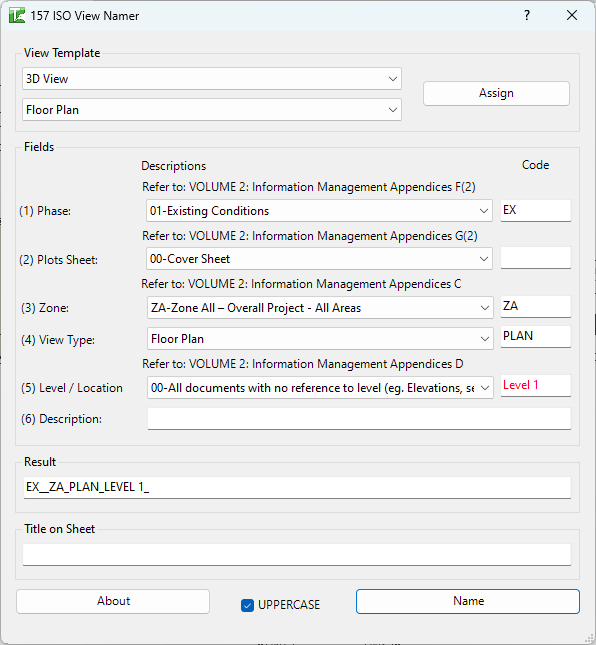
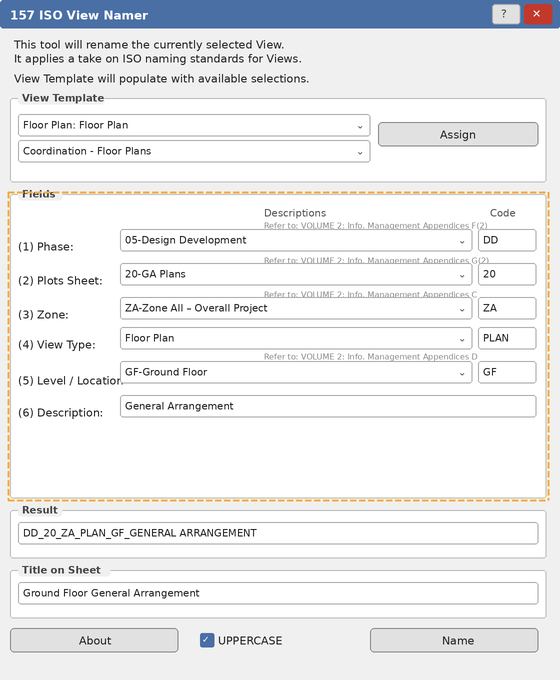
Fields Section: Six-Component Naming

Each field has three components:

  1. Label: Field number and name
  2. Dropdown: Pre-defined standard codes with descriptions
  3. Text Box: Editable code (typically 2-4 characters)

Field Structure:

(1) Phase:          [Dropdown with descriptions]  [EX]
(2) Plots Sheet:    [Dropdown with descriptions]  [20]
(3) Zone:           [Dropdown with descriptions]  [ZA]
(4) View Type:      [Dropdown with descriptions]  [PLAN]
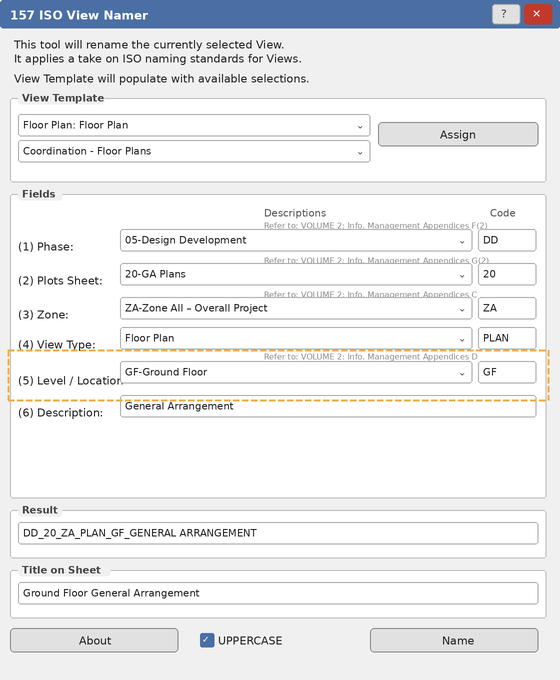
(5) Level/Location: [Dropdown with descriptions]  [GF]
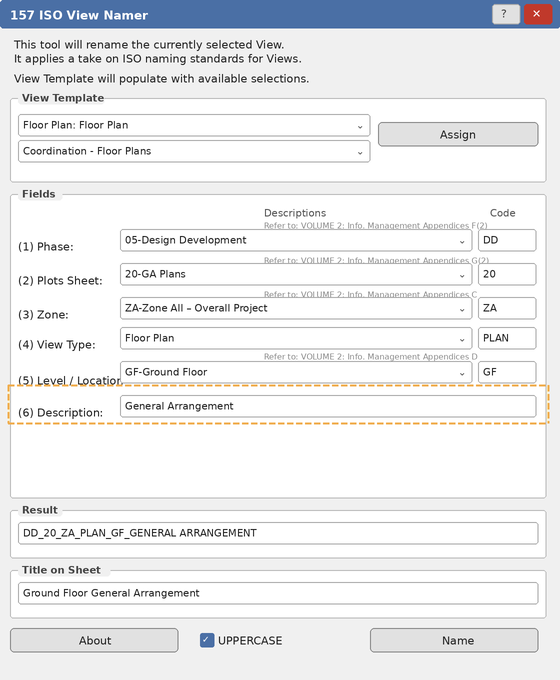
(6) Description:    [Free text entry]             [General Layout]

Result Section

Result Field

  • Shows assembled view name from all components
  • Format: Phase_PlotSheet_Zone_ViewType_Level_Description
  • Example: EX_20_ZA_PLAN_GF_General Layout
  • Red text indicates duplicate name (auto-increment will be applied)
  • Black text indicates unique name

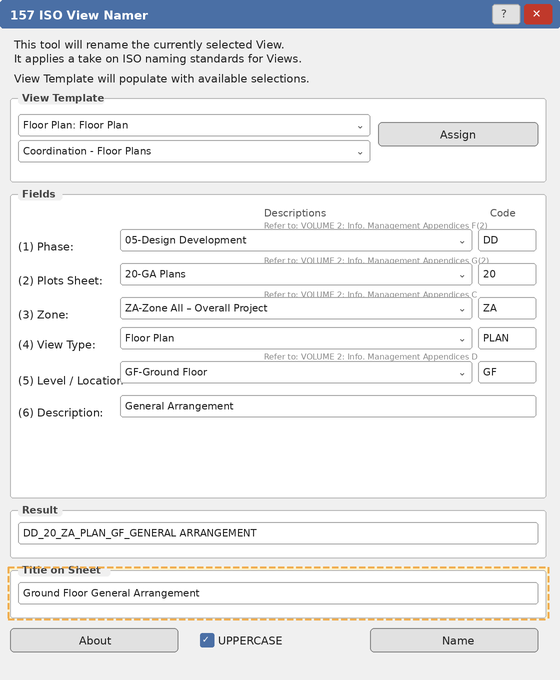
Title on Sheet Field

  • Sets the view's "Title on Sheet" parameter
  • Independent from view name
  • Can be descriptive text
  • Example: "Ground Floor General Arrangement"

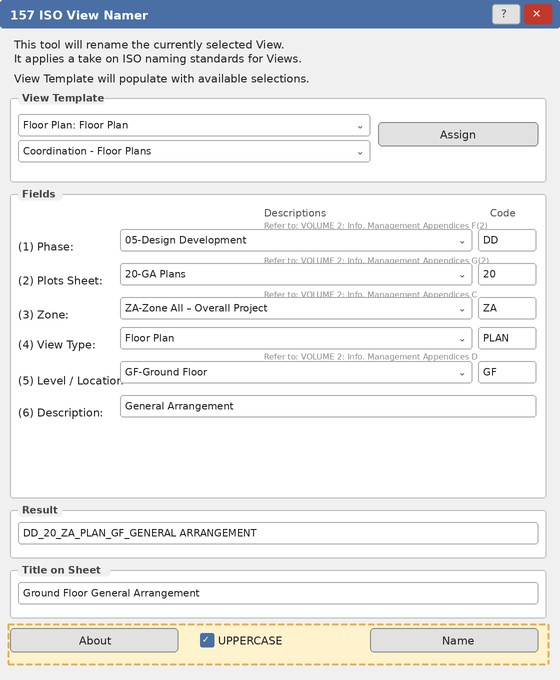
Bottom Section: Actions

UPPERCASE Checkbox

  • When checked: converts all text to uppercase
  • When unchecked: converts all text to lowercase
  • Affects both Result and Title on Sheet fields
  • Default: Checked (uppercase)

About Button

  • Opens Bonus Tools information dialog
  • Shows version and license details

Name Button

  • Applies the view name from Result field
  • Prevents names containing "copy"
  • Auto-increments if duplicate detected
  • Updates both view name and Title on Sheet parameter
  • Closes dialog after successful rename

Naming Convention

The tool uses a six-part underscore-separated naming structure based on ISO standards:

Format

[Phase]_[PlotSheet]_[Zone]_[ViewType]_[Level]_[Description]

Example

DD_20_ZA_PLAN_GF_General Arrangement

Breakdown:

  • DD = Design Development phase
  • 20 = GA Plans drawing series
  • ZA = Zone All (entire project)
  • PLAN = Floor plan view type
  • GF = Ground Floor level
  • General Arrangement = Descriptive text

Component Lengths

  • Phase: 2 characters (e.g., EX, SD, DD)
  • Plot Sheet: 2 digits (e.g., 00, 20, 40)
  • Zone: 2 characters (e.g., ZA, M1, S1)
  • View Type: 4 characters (e.g., PLAN, SECT, ELEV)
  • Level/Location: 2 characters or level name (e.g., GF, 01, B1)
  • Description: Free text (keep concise)

Step-by-Step Guide

Basic Workflow

  1. Open Target View

    • Navigate to the view you want to rename
    • Ensure it's the active view
  2. Launch ISO View Namer

    • Go to Bonus Tools tab
    • Click ISO View Namer
    • Dialog opens with auto-populated fields
  3. Review Auto-Populated Fields

    • Tool attempts to parse existing view name
    • Reads custom parameters if available
    • Suggests appropriate codes based on view type
    • All fields can be manually edited
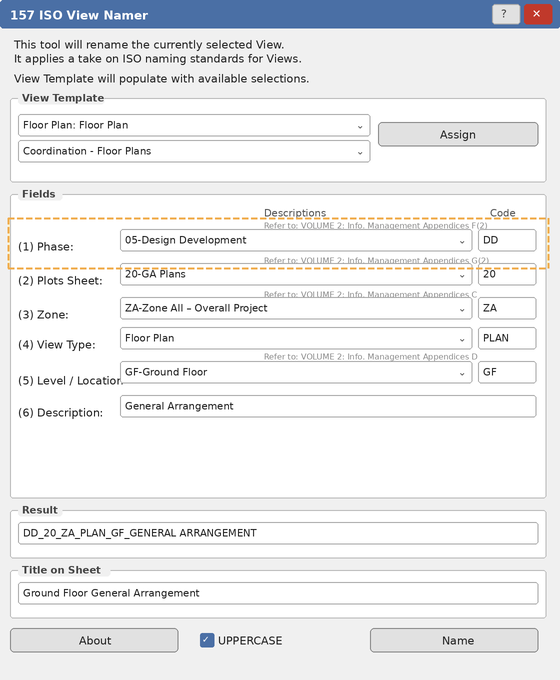
  4. Adjust Phase (Field 1)

    • Select from dropdown or type code directly
    • Black text = valid code from list
    • Red text = custom code (still allowed)
    • Example: Select "06-Contract Documentation" → Code shows "CD"
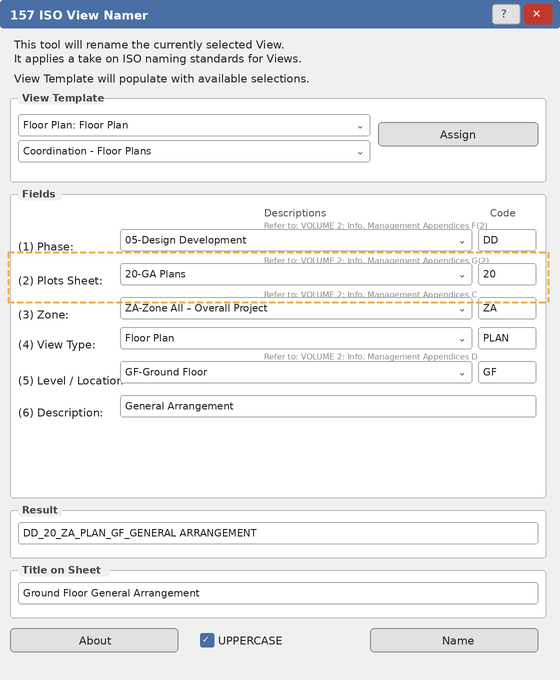
  5. Set Plot Sheet (Field 2)

    • Choose drawing series from dropdown
    • Corresponds to sheet organization
    • Example: Select "20-GA Plans" → Code shows "20"
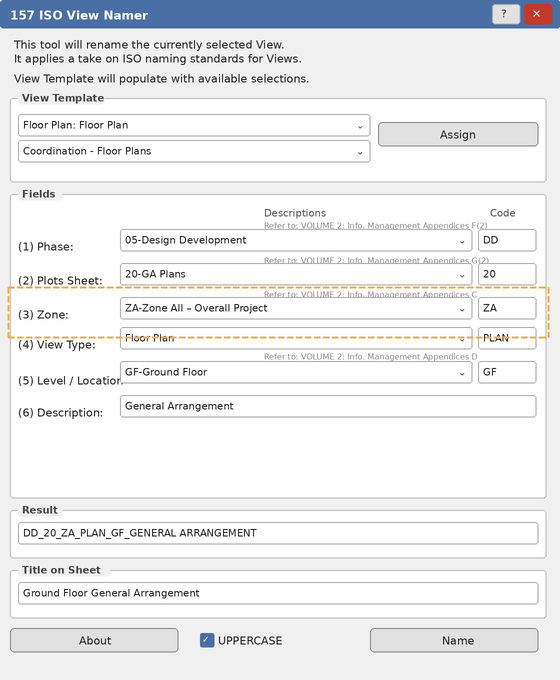
  6. Define Zone (Field 3)

    • Select project zone or area
    • Example: "ZA-Zone All" for project-wide views
    • Example: "M1-Main Building - Area 1" for specific zones
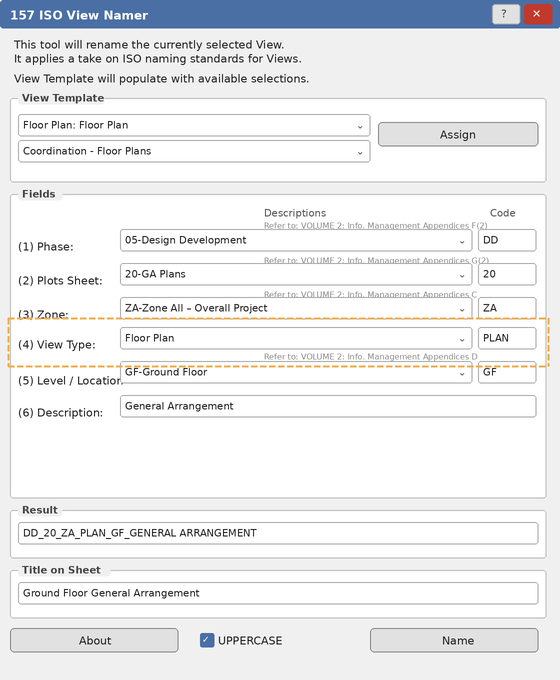
  7. Select View Type (Field 4)

    • Auto-populated based on Revit view type
    • Floor Plan → PLAN
    • Ceiling Plan → PRCP
    • Section → SECT
    • Can override if needed
  8. Choose Level/Location (Field 5)

    • Auto-populated from view's associated level
    • For plans: shows level name (GF, 01, 02, etc.)
    • For elevations: shows direction (NN, SS, EE, WW)
    • For non-level views: select appropriate code
  9. Add Description (Field 6)

    • Free text field for view description
    • Keep concise and descriptive
    • Examples: "General Layout", "Demolition", "Fire Strategy"
    • Avoid special characters
  10. Review Result

    • Check assembled name in Result field
    • Red text = duplicate exists (will auto-increment)
    • Black text = unique name
  11. Set Title on Sheet (Optional)

    • Enter descriptive title for sheet placement
    • Can be longer and more descriptive than view name
    • Example: "Ground Floor - General Arrangement Plan"
  12. Apply Uppercase (Optional)

    • Check UPPERCASE box for all caps
    • Uncheck for lowercase (not recommended for ISO)
  13. Assign View Template (Optional)

    • Select template from dropdown if needed
    • Click Assign to apply
    • Interface refreshes with new template
  14. Name the View

    • Click Name button
    • View is renamed and dialog closes
    • Changes are saved to project

Editing Existing Named Views

  1. Open a view that's already named with ISO convention
  2. Tool parses the existing name:
    • Splits by underscores
    • Populates each field with detected component
  3. Make adjustments to any field
  4. Click Name to apply changes

Field Descriptions

(1) Phase

Purpose: Identifies project phase or document status

Standard Codes:

  • EX - Existing Conditions
  • MP - Master Planning
  • TP - Town Planning Application
  • SK - Sketch Design
  • SD - Schematic Design
  • DD - Design Development
  • CD - Contract Documentation
  • LP - Leasing
  • TD - Tenancy Drawings
  • MK - Marketing
  • CV - Coordination Plans
  • WV - Working Views
  • IP - Internal Prints
  • LV - Linked Views
  • XX - Reference (Standards)

Auto-Population:

  • Reads from S-VW_Project Phase_T parameter
  • Extracts 2-character code from parameter value
  • Example: "05-Design Development" → "DD"

(2) Plot Sheet

Purpose: Indicates drawing series for sheet organization

Standard Codes:

  • 00 - Cover Sheet
  • 01 - Area Schedules/Commercial Info
  • 02 - Survey, Topographic, Environment Info
  • 10 - General Sub-structure
  • 17 - General Information
  • 19 - Area Measurement Plans
  • 20 - GA Plans
  • 30 - Reflected Ceiling Plans
  • 40 - GA Elevations
  • 50 - GA Sections
  • 60 - General Construction Details
  • 70 - General Permanent Fixtures/Fittings
  • 80 - Miscellaneous / Interior Design
  • 90 - General External Works

Auto-Population:

  • Reads from S-VW_Drawing Series_T parameter
  • Extracts first 2 characters
  • Example: "20-GA Plans" → "20"

(3) Zone

Purpose: Identifies project zone or building area

Standard Codes:

  • ZA - Zone All (Overall Project - All Areas)
  • ZZ - All Zones (Where Zone A, B, or C required)
  • Z1 - Zone 1 (numbered zones)
  • MA - Main Building - All Areas
  • M1, M2 - Main Building - Areas 1, 2
  • S1, S2 - Supermarket 1, 2
  • D1, D2 - Department Store 1, 2
  • P1 - Pad Site - Area 1
  • HA - Hotel - All Areas
  • OA - Office - All Areas
  • RA - Residential - All Areas

Auto-Population:

  • Reads from MC_Zone_T parameter
  • Uses parameter value directly
  • Defaults to "ZA" if not found

(4) View Type

Purpose: Defines type of view drawing

Standard Codes:

Plans:

  • PLAN - Floor Plan
  • PRCP - Reflected Ceiling Plan
  • PGLA - Area Plan (Gross Lettable Area)
  • PGLR - Area Plan (Gross Lettable Retail)
  • PNLA - Area Plan (Net Lettable Area)
  • PGFA - Area Plan (Gross Floor Area)
  • PRPA - Area Plan (Retail Planning Area)

Elevations/Sections:

  • ELEV - Elevation
  • ELIN - Internal Elevation
  • SECT - Section
  • SSEC - Strip Sections

Enlarged Views:

  • EPLN - Enlarged Plan
  • ERCP - Enlarged RCP
  • EELV - Enlarged Elevation
  • ESEC - Enlarged Section

Detail Views:

  • DPLN - Detail Plan
  • DRCP - Detail RCP
  • DELV - Detail Elevation
  • DSEC - Detail Section

Other:

  • DRFT - Drafting View
  • LGND - Legend Views
  • SCHD - Schedules
  • 3AXO - 3D Axonometric
  • 3PER - 3D Perspective
  • 3REN - 3D Render
  • WALK - Walkthrough

Auto-Population: Based on Revit ViewType:

  • FloorPlan → PLAN
  • AreaPlan → PGLA
  • CeilingPlan → PRCP
  • Elevation → ELEV
  • Section → SECT
  • Detail → DPLN
  • DraftingView → DRFT
  • ThreeD → 3PER
  • Walkthrough → WALK

(5) Level / Location

Purpose: Identifies floor level or directional orientation

Standard Codes:

Levels:

  • 00 - No level reference (elevations, sections, reports)
  • B1, B2 - Basement Levels
  • GF - Ground Floor
  • M1, M2 - Mezzanine Levels
  • 01 to 10 - Upper Levels
  • RF - Combined Roof Level

Directions:

  • NN - North
  • NE - Northeast
  • NW - Northwest
  • EE - East
  • SS - South
  • SE - Southeast
  • SW - Southwest
  • WW - West

Auto-Population:

  • For plans: reads from view's associated level (GenLevel)
  • Uses actual level name from project
  • Example: If level is named "Level 1" → "Level 1"
  • For elevations/sections: defaults to "Location TBC" (user edits)

(6) Description

Purpose: Free text description of view content

Guidelines:

  • Keep concise (aim for 2-4 words)
  • Use descriptive terms
  • Avoid special characters
  • Examples:
    • "General Layout"
    • "Demolition Plan"
    • "Fire Strategy"
    • "Existing Conditions"
    • "Proposed Layout"
    • "Partition Plan"
    • "Furniture Layout"

Auto-Population:

  • Attempts to extract from existing view name
  • Uses sixth component after splitting by underscores
  • Defaults to empty if not found

Example Workflows

Workflow 1: Naming New Floor Plans

Scenario: Create consistent names for floor plans across all levels

  1. Open Ground Floor plan
  2. Run ISO View Namer
  3. Set Phase: DD (Design Development)
  4. Set Plot Sheet: 20 (GA Plans)
  5. Set Zone: ZA (Zone All)
  6. View Type auto-set: PLAN
  7. Level auto-set: GF (from view level)
  8. Description: "General Arrangement"
  9. Result: DD_20_ZA_PLAN_GF_General Arrangement
  10. Click Name

Repeat for each level:

  • DD_20_ZA_PLAN_B1_General Arrangement
  • DD_20_ZA_PLAN_01_General Arrangement
  • DD_20_ZA_PLAN_02_General Arrangement

Benefit: Consistent, organized view names across project

Workflow 2: Organizing Views by Phase

Scenario: Differentiate between existing and proposed views

Existing Conditions:

  1. Open existing condition plan
  2. Phase: EX
  3. Plot Sheet: 20
  4. Zone: ZA
  5. View Type: PLAN
  6. Level: GF
  7. Description: "Existing Layout"
  8. Result: EX_20_ZA_PLAN_GF_Existing Layout

Proposed Design:

  1. Open proposed design plan
  2. Phase: DD
  3. Plot Sheet: 20
  4. Zone: ZA
  5. View Type: PLAN
  6. Level: GF
  7. Description: "Proposed Layout"
  8. Result: DD_20_ZA_PLAN_GF_Proposed Layout

Benefit: Clear phase separation in view organization

Workflow 3: Multi-Zone Projects

Scenario: Large project with distinct zones

Zone 1 Views:

  • DD_20_M1_PLAN_GF_Retail Area
  • DD_30_M1_PRCP_GF_Ceiling Layout
  • DD_40_M1_ELEV_NN_North Facade

Zone 2 Views:

  • DD_20_S1_PLAN_GF_Supermarket
  • DD_30_S1_PRCP_GF_Ceiling Layout
  • DD_40_S1_ELEV_EE_East Facade

Benefit: Easy filtering and organization by zone

Workflow 4: Detail View Organization

Scenario: Creating detail views for construction documentation

  1. Create detail view
  2. Phase: CD (Contract Documentation)
  3. Plot Sheet: 60 (General Construction Details)
  4. Zone: ZA
  5. View Type: DPLN (Detail Plan)
  6. Level: 00 (no specific level)
  7. Description: "Wall Base Detail"
  8. Result: CD_60_ZA_DPLN_00_Wall Base Detail

More details:

  • CD_60_ZA_DSEC_00_Window Head
  • CD_60_ZA_DSEC_00_Window Sill
  • CD_60_ZA_DPLN_00_Door Frame

Benefit: Details grouped by plot sheet series

Tips and Best Practices

  1. Use Uppercase Convention

    • Keep UPPERCASE checkbox enabled
    • Maintains consistency with ISO standards
    • Easier to read in project browser
    • Standard practice in most firms
  2. Establish Project Codes Early

    • Define zone codes at project start
    • Document in BIM Execution Plan
    • Share with entire team
    • Consider creating project-specific code lists
  3. Leverage Custom Parameters

    • Set up S-VW_Project Phase_T parameter
    • Set up S-VW_Drawing Series_T parameter
    • Set up MC_Zone_T parameter
    • Populate when creating views
    • Tool auto-reads these for faster naming
  4. Keep Descriptions Concise

    • Aim for 2-4 words maximum
    • Use abbreviations when appropriate
    • Avoid redundant information already in codes
    • Think about how name appears in browser
  5. Batch Renaming Strategy

    • Rename views by category (all plans, then elevations, etc.)
    • Keeps naming consistent within view types
    • Use similar descriptions for similar views
    • Document naming patterns for team reference
  6. View Template Workflow

    • Assign view template first
    • Then rename view
    • Template may contain preset parameters
    • Ensures consistency in view setup and naming
  7. Test Names Before Full Rollout

    • Try naming convention on sample views
    • Verify it works for all view types
    • Check project browser organization
    • Adjust codes if needed before full implementation
  8. Document Custom Codes

    • If using codes not in standard lists
    • Create project code legend
    • Share with team members
    • Include in BIM documentation
  9. Parse Existing Names

    • Tool can read existing ISO-formatted names
    • Use when updating or correcting names
    • Maintains continuity with existing naming
    • Quick way to adjust single component
  10. Title on Sheet Strategy

    • Use descriptive titles for sheets
    • Can be longer than view name
    • Include full words (not codes)
    • Example: View Name "DD_20_ZA_PLAN_GF_GA" → Title "Ground Floor General Arrangement"

Common Use Cases

Large Mixed-Use Development

Purpose: Organize views across multiple building types

Office Zone:

  • DD_20_OA_PLAN_GF_Lobby
  • DD_20_OA_PLAN_01_Typical Office
  • DD_30_OA_PRCP_01_Ceiling Layout

Retail Zone:

  • DD_20_RA_PLAN_GF_Mall Concourse
  • DD_20_RA_PLAN_GF_Food Court
  • DD_40_RA_ELEV_NN_Storefront

Residential Zone:

  • DD_20_RA_PLAN_02_Unit Plans
  • DD_50_RA_SECT_SS_Building Section

Benefits:

  • Clear zone separation
  • Easy to filter by zone code
  • Consistent across disciplines

Phased Construction Project

Purpose: Track views through multiple phases

Phase 1 - Existing:

  • EX_20_ZA_PLAN_GF_Existing Layout
  • EX_05_ZA_PLAN_GF_Demolition

Phase 2 - New Construction:

  • CD_20_ZA_PLAN_GF_New Layout
  • CD_30_ZA_PRCP_GF_New Ceiling

Phase 3 - Future:

  • SD_20_ZA_PLAN_01_Future Expansion

Benefits:

  • Chronological organization
  • Clear phase identification
  • Supports construction sequencing documentation

Educational Facility

Purpose: Organize views by building wings/zones

Academic Wing:

  • DD_20_Z1_PLAN_01_Classrooms
  • DD_20_Z1_PLAN_02_Science Labs

Administration Wing:

  • DD_20_Z2_PLAN_01_Offices
  • DD_20_Z2_PLAN_GF_Reception

Athletic Facilities:

  • DD_20_Z3_PLAN_GF_Gymnasium
  • DD_50_Z3_SECT_SS_Pool Section

Benefits:

  • Functional area grouping
  • Easy navigation for stakeholders
  • Supports phased occupancy

Interior Fit-Out Project

Purpose: Detail views for tenant spaces

Plans:

  • TD_20_M1_PLAN_05_Tenancy A
  • TD_20_M2_PLAN_05_Tenancy B

Ceiling:

  • TD_30_M1_PRCP_05_Ceiling Tenancy A

Details:

  • TD_60_M1_DPLN_05_Partition Details
  • TD_60_M1_DSEC_05_Storefront Detail

Benefits:

  • Tenant-specific organization
  • Matches drawing series to deliverables
  • Clear tenancy delineation

Troubleshooting

Tool Won't Open

Problem: Nothing happens when clicking tool Solutions:

  • Verify a view is active (not schedule or sheet)
  • Cannot run on view templates
  • Close any other open dialogs
  • Check if view is in "Editing Mode" - exit edit mode first
  • Restart Revit if issue persists

Fields Not Auto-Populating

Problem: All fields show defaults, no auto-detection Solutions:

  • Custom parameters may not exist in template
  • View may be newly created with no parameters set
  • Manually select appropriate codes from dropdowns
  • Consider adding custom parameters to template
  • Tool still functions, just requires manual input

Cannot Edit Text Boxes

Problem: Text boxes are grayed out or disabled Solutions:

  • This shouldn't occur - all fields are editable
  • Try clicking directly in text box
  • Check if dialog is fully loaded
  • Close and reopen tool

Red Text in Fields

Problem: Text appears red instead of black Solutions:

  • Red indicates code not in standard list
  • This is a warning, not an error
  • Custom codes are allowed
  • View will still be named correctly
  • To fix: select code from dropdown

Result Shows Red Text

Problem: Final result displayed in red Solutions:

  • Red indicates duplicate view name exists
  • Tool will auto-increment (adds number: 0, 1, 2, etc.)
  • Final name will be unique when applied
  • Consider adjusting description to make unique
  • Or accept auto-increment

"Name must not contain 'copy'"

Problem: Error message when clicking Name button Solutions:

  • Remove word "copy" from any field
  • Often appears in description field
  • Revit may have auto-added "Copy" to duplicate views
  • Edit description to remove it
  • This prevents confusion with Revit's duplicate naming

View Name Doesn't Update

Problem: Click Name but view name unchanged Solutions:

  • Check for error messages
  • View may be locked or on non-editable workset
  • Another view may have exact same name
  • Check Output Dialog for specific errors
  • Try slight modification to name

Level Name Too Long

Problem: Level name doesn't fit convention Solutions:

  • Tool uses actual level names from project
  • May show full name like "Level 01" instead of "01"
  • Manually edit Level/Location field to 2-character code
  • Or accept longer level name (still valid)
  • Consider renaming project levels to shorter codes

Problem: Expected codes not in dropdown Solutions:

  • Dropdowns show predefined standards only
  • Not all possible codes are pre-loaded
  • Type custom codes directly in text box
  • Custom codes are fully supported
  • Red text indicates custom code

View Template Not Applying

Problem: Template selected but not applied to view Solutions:

  • Click Assign button after selecting template
  • Selection alone doesn't apply template
  • Check if view allows template application
  • Some view types have restrictions
  • Verify template is compatible with view type

Changes Lost When Reopening

Problem: Custom settings don't persist Solutions:

  • Tool saves certain preferences (like uppercase setting)
  • View-specific values don't persist (correct behavior)
  • Each view is named independently
  • If creating many similar views, use consistent manual entries
  • Consider creating view naming template documentation

Need Help? Contact support or refer to additional Bonus Tools documentation.

Thank you for using Bonus Tools - ISO View Namer!