
156 Get File Details
Chris McKeown / July 1, 2025
Cloud
Overview
Get File Details instantly displays comprehensive information about the currently open Revit file — local file path, title, Revit version, and for BIM 360/ACC cloud-workshared files, the full cloud collaboration path, Project GUID, and File GUID. Since cloud files use GUIDs rather than readable file names in API references, this tool is the fastest way to surface those identifiers without navigating the Autodesk portal.
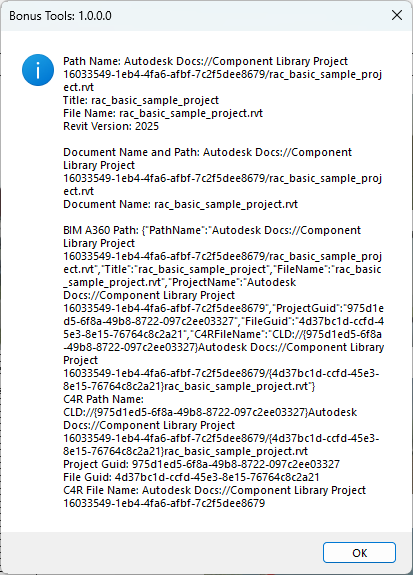
Table of Contents
Key Features
- Displays full file path, title, file name, and Revit version in one operation
- Resolves mapped network drives to full UNC paths for accurate sharing
- Shows BIM 360/ACC cloud collaboration path in standard and C4R GUID notation
- Extracts Project GUID and File GUID from cloud-workshared files
- For workshared files, reads the central model path — not the local copy path
- No dialog, no configuration — runs instantly and outputs to the Bonus Tools Output Dialog
- Output is easy to copy from the Output Dialog for use in documentation or scripts
Requirements
- Any open Revit project file — saved local, network, or BIM 360/ACC cloud
- Save the file before running — unsaved new files have no established path and will return limited information
- Cloud GUID fields only populate for BIM 360/ACC workshared files; local and network workshared files show blank cloud fields
Running the Tool
Launch
Find Get File Details on the Bonus Tools Ribbon or use 115 Search Tools.
No dialog appears. The tool runs immediately and writes its output to the Bonus Tools Output Dialog — open it via the Add-Ins panel to copy text easily.
Output Fields
Basic information
| Field | Description | Example |
|---|---|---|
| Path Name | Raw path as stored by Revit (may show BIM 360:// prefix) | BIM 360://Project/Folder/File.rvt |
| Title | Document title without file extension | rac_basic_sample_project |
| File Name | Document title with .rvt extension appended | rac_basic_sample_project.rvt |
| Revit Version | Version number the file was last saved in | 2025 |
Document path details
| Field | Description |
|---|---|
| Document Name and Path | Resolved full path — for workshared files this is the central model path, not local; mapped drives are expanded to UNC |
| Document Name | File name extracted from the resolved path |
Cloud collaboration information (BIM 360/ACC workshared files only)
| Field | Description | Example |
|---|---|---|
| BIM A360 Path | Full JSON block with cloud path details in BIM 360 format | JSON containing PathName, Title, ProjectGuid, etc. |
| C4R Path Name | GUID-based cloud path in C4R notation for API use | CLD://{ProjectGUID}Folder/{FileGUID}File.rvt |
| Project Guid | Unique identifier for the BIM 360/ACC project (hub) | 975d1ed5-6f8a-49b8-b72f-... |
| File Guid | Unique identifier for this specific file within the project | 4d37bc1d-ccfd-45e3-9f4a-... |
| C4R File Name | Folder path portion of the cloud project, with BIM 360:// prefix stripped | /ProjectName/FolderPath/ |
For non-cloud files the BIM A360 Path and all GUID fields will be blank — this is expected behaviour, not an error.
Tips and Best Practices
- Copy from the Output Dialog, not the message box. The pop-up info dialog is not easily selectable. The same output is written to the Bonus Tools Output Dialog where you can select all and copy in one action.
- GUIDs are stable identifiers. A BIM 360/ACC file GUID does not change when the file is renamed or moved within the same project. It is the most reliable key for API integrations and external databases.
- Project GUID vs File GUID. The Project GUID identifies the Autodesk Construction Cloud project (hub). The File GUID identifies this specific Revit file. Both are required for programmatic access via the APS (Autodesk Platform Services) API.
- The C4R Path Name is the format for Revit API
ModelPath. If you need to open a cloud file using the Revit API, theCLD://{ProjectGUID}FolderPath/{FileGUID}FileName.rvtstring is what you pass toModelPathUtils.ConvertUserVisiblePathToModelPath. - Network paths are resolved to UNC. If you are on a mapped drive (e.g.
Z:\), the tool resolves it to its full UNC path (e.g.\\server\share\...). This is the path that will work across machines regardless of drive letter mappings. - The Document Name and Path reflects the central model, not the local copy. For workshared files this is the server or cloud path — the path other collaborators would use to access the same file.
- Run before migration or handover. Record the Project GUID and File GUIDs before moving files so future teams can locate the originals even if folder structures change.
Common Use Cases
Locating a file's cloud identifiers — BIM 360/ACC references files internally by GUID. Run this tool to retrieve the Project GUID and File GUID needed for portal searches, API calls, or support tickets without leaving Revit.
Revit API and APS development — Copy the C4R Path Name directly into API code as a working example of the GUID-based path format required for cloud file operations. Saves time manually constructing the path from portal URL components.
Confirming the central model path — On a workshared file, verify the Document Name and Path shows the correct central server or cloud path. If it shows a local path, the file may have been opened as a local copy rather than from the network location.
Version compatibility checking — Check the Revit Version field before sending a file to consultants or uploading to a shared platform, to avoid "file was saved in a newer version" errors on receipt.
Support and troubleshooting — When raising a ticket with Kiwi Codes or Autodesk support for a cloud file issue, run the tool and paste the full output. It gives support staff everything needed to identify the exact file without back-and-forth.
Migration audit — Run before and after migrating files between BIM 360 projects or reorganising folder structures. Compare outputs to confirm the new paths and GUIDs are correct and nothing was detached during the move.
Troubleshooting
Cloud fields are blank (BIM A360 Path, GUIDs all empty) The file is not a cloud-workshared BIM 360/ACC file, or it was opened as a detached copy rather than from the cloud directly. Open the file via BIM 360/ACC in the Revit Open dialog to reconnect to the central model. Local and server-workshared files do not have cloud GUIDs — blank fields for those files is correct.
Output shows very limited information or the path is empty
The file has not been saved. Save it with a file name first — the tool reads doc.PathName, which is empty for unsaved documents.
"Document Name" shows "error" An exception was thrown while parsing the file path. This can occur with unusual path formats or network connectivity issues when the tool tries to resolve a mapped drive to UNC. The basic fields (Path Name, Title, File Name, Revit Version) will still be correct.
GUIDs don't match what is shown in the Autodesk portal Confirm you are looking at the file GUID (not the folder or version GUID) in the portal. A detached or locally-saved copy of a cloud file may carry different GUIDs. Check whether the file was opened from the cloud or from a local copy — the path name field will clarify this.
C4R Path Name format does not open the file in API code
Verify: curly braces {} are present around both GUIDs; the folder path segment uses forward slashes; no hidden characters were introduced during copy/paste; and the format exactly matches CLD://{ProjectGUID}FolderPath/{FileGUID}FileName.rvt. Note that the path is case-sensitive.
Revit Version field shows an unexpected version The version shown is when the file was last saved, not the version currently running. If a colleague saved the file in a newer version of Revit, that version will be shown even if you opened it in an older version. Upgrade Revit or ask the colleague to save down if compatibility is needed.
Error in the Output Dialog / tool fails silently
An unhandled exception was caught and logged. Open the Bonus Tools Output Dialog to read the full error message. Common causes: the document is a Family (.rfa) rather than a project (.rvt), or the file is not yet open in a UI document context.